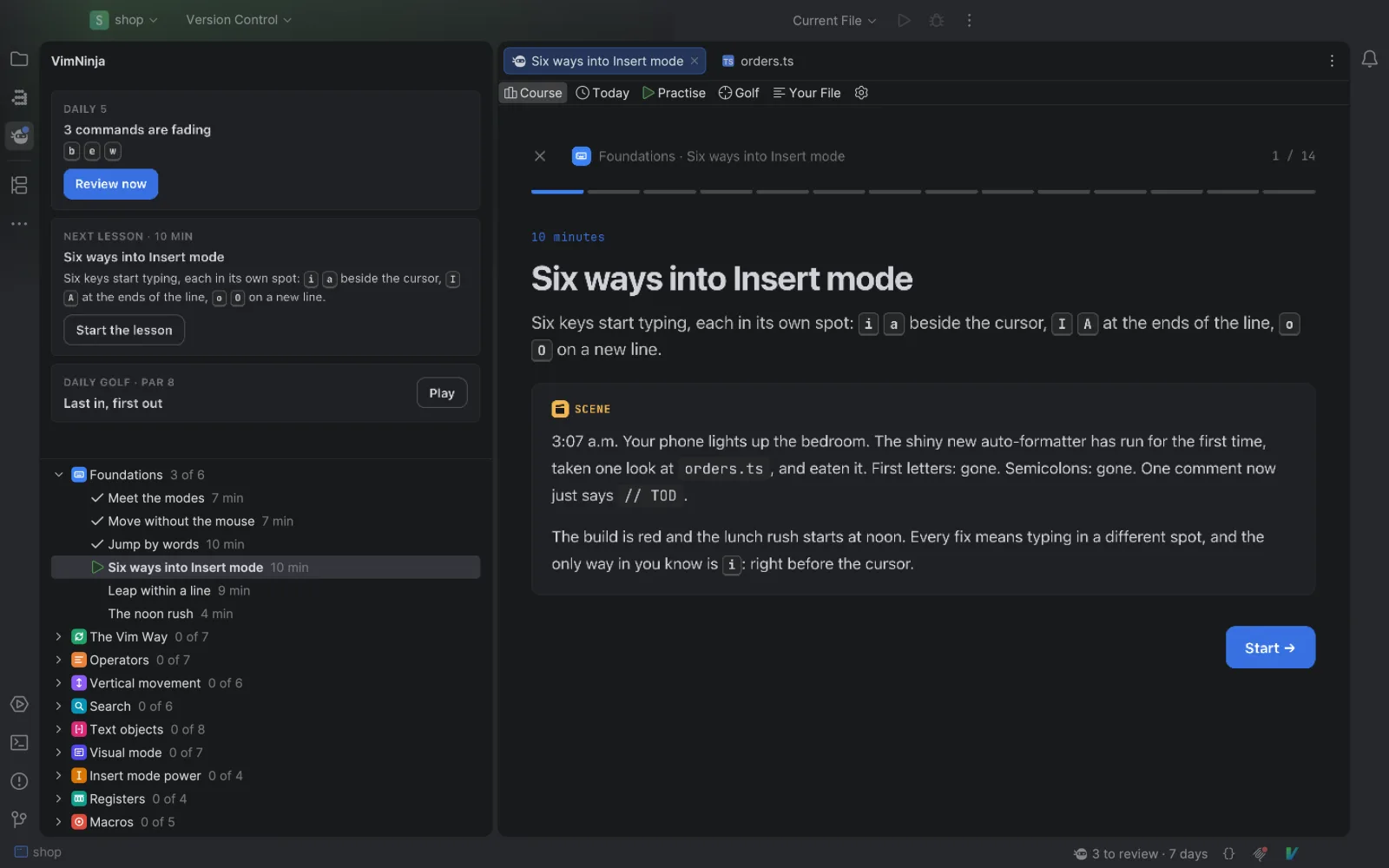
Lessons beside your code
82 short lessons, from your first keystroke to macros. Where IdeaVim works differently (the clipboard, surround, your .ideavimrc), the lesson says so.
VimNinja for JetBrains IDEsComing soon
82 short lessons, a two-minute daily review and Vim golf in a tab beside your code, in IntelliJ IDEA, PyCharm, WebStorm and the other JetBrains IDEs. Practise on a copy of your own file. And, when you turn it on, a coach that spots slow habits as you edit with IdeaVim.
Free, for JetBrains IDEs from 2025.3.1, on the JetBrains Marketplace soon. Start the course now; connect the plugin when it’s out and your progress comes with you.
Edit as you always do with IdeaVim. When you pause after something slow, the faster way shows in the status bar for a few seconds, beside IdeaVim’s own mode. A click there opens the lesson, says “got it”, or turns coaching off. Off until you turn it on.
j j j j j → 8j or } A count jumps straight there, and { } jump a paragraph. l l l l → w e or f{char} Jump by words, or straight to a character, instead of crawling. x x x → dw de or dt{char} One operator and a motion delete the lot, and . repeats it. Backspace, many times → Ctrl-w or Esc then ciw Ctrl-w takes back a whole word; ciw replaces one. At most one tip every 10 minutes, each at most once a day. Nothing leaves your computer.
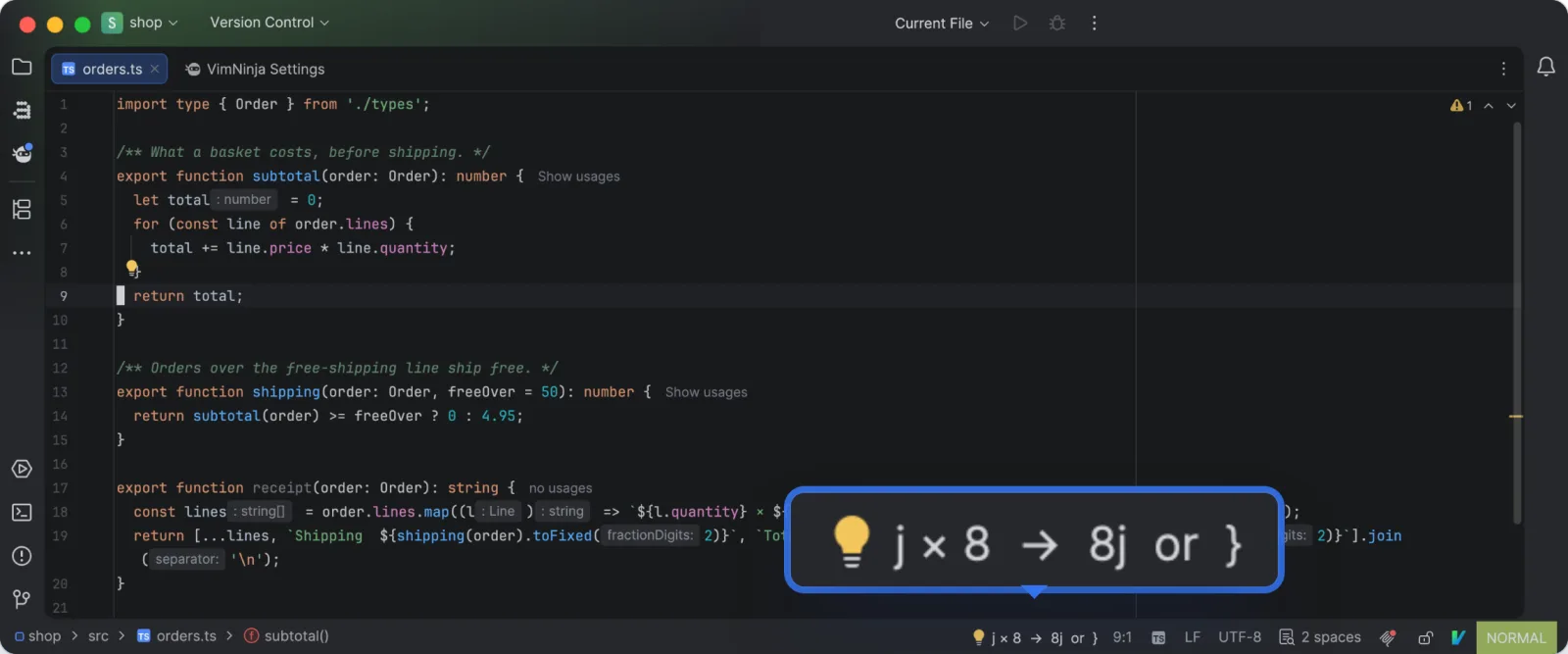
Crawl with j, delete letter by letter or backspace a word away, pause, and the tip shows in the status bar, beside IdeaVim’s mode. A click on it for the lesson. These are the plugin’s own rules, on a real Vim engine.
Edit as you would with IdeaVim: pause after something slow and the faster way shows in the status bar, beside IdeaVim’s mode. A click there for the lesson.
In your IDE a tip comes at most every 10 minutes, each one at most once a day. Here, every time, so you can see them.
Real captures of the plugin in IntelliJ IDEA.
82 short lessons, from your first keystroke to macros. Where IdeaVim works differently (the clipboard, surround, your .ideavimrc), the lesson says so.
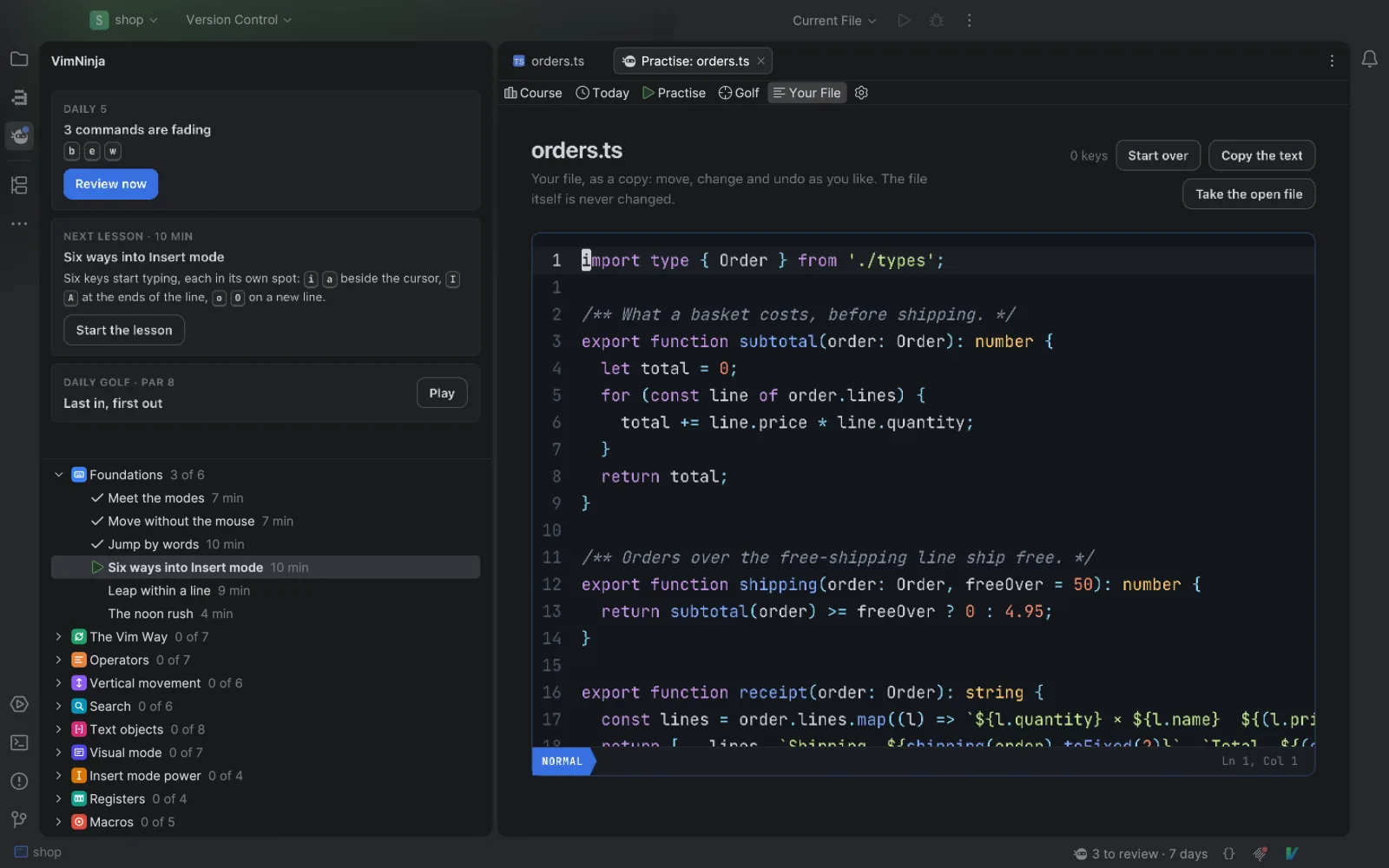
Right-click a file (or a selection): Practise Vim on This File opens it as a copy, every key read back. Change it, undo it, try again. Your file never changes.
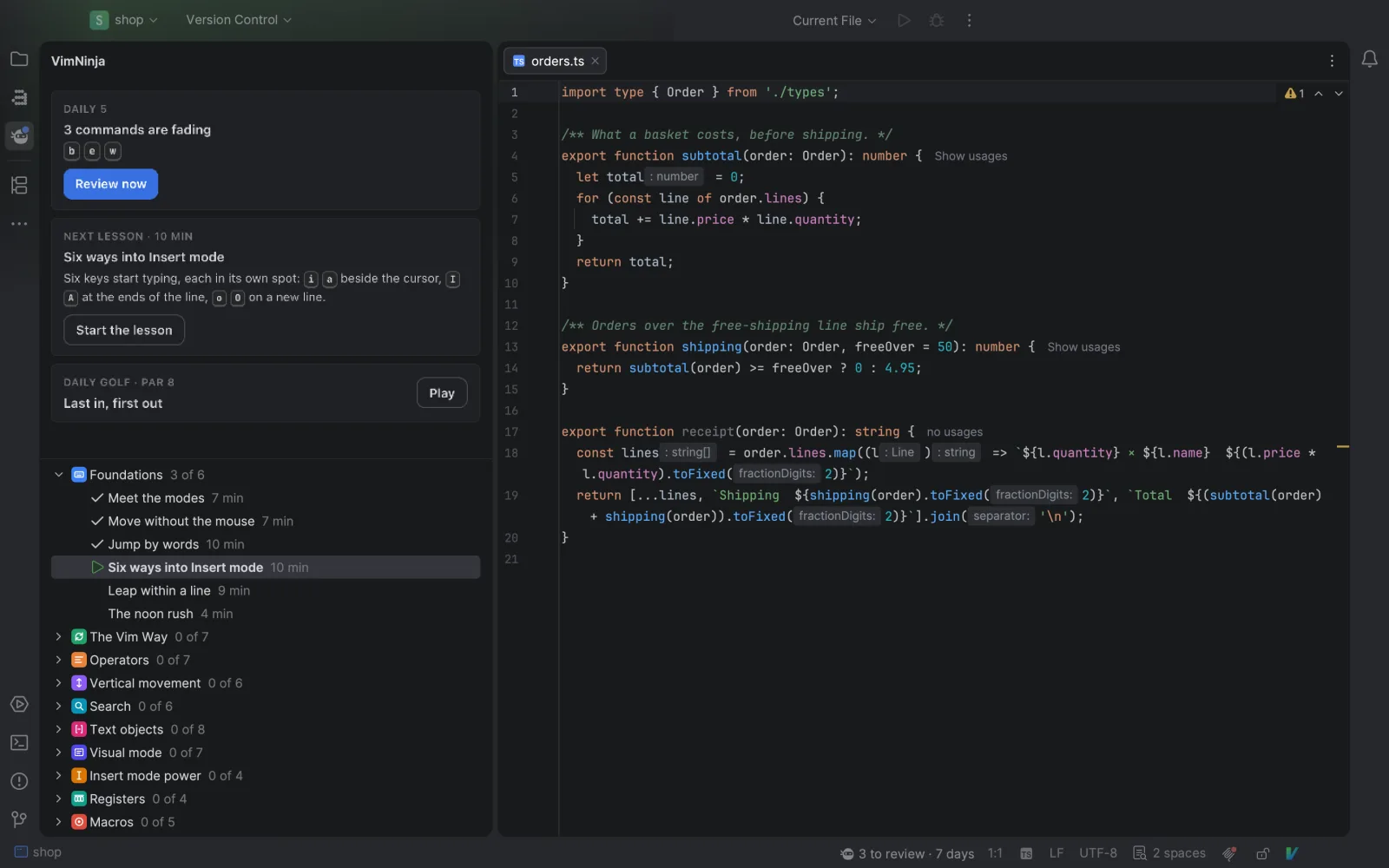
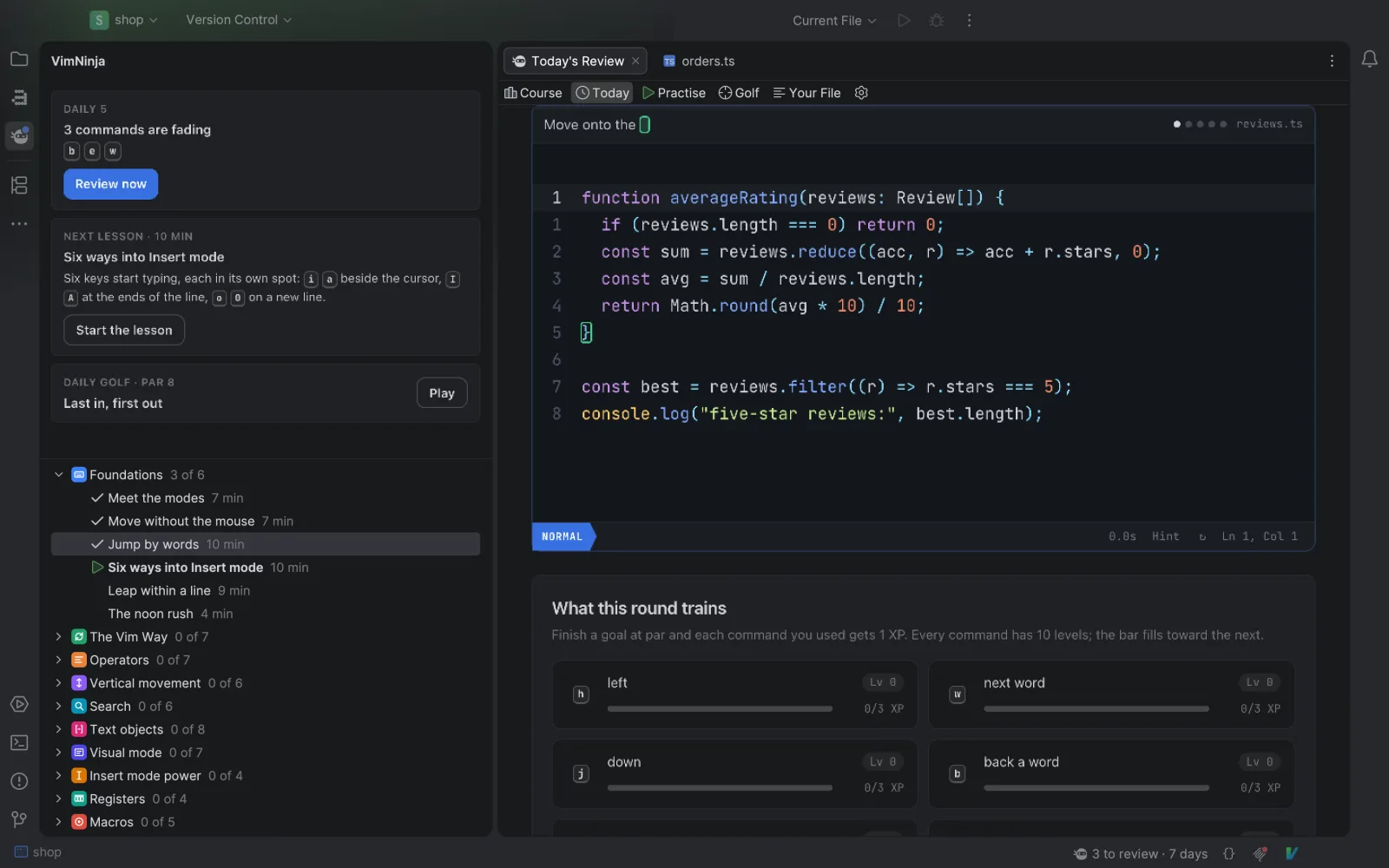
Each command comes back just as you’d start to forget it. The status bar says what’s due, a dot on the ninja marks it, and the tool window has today at a glance over the whole course.
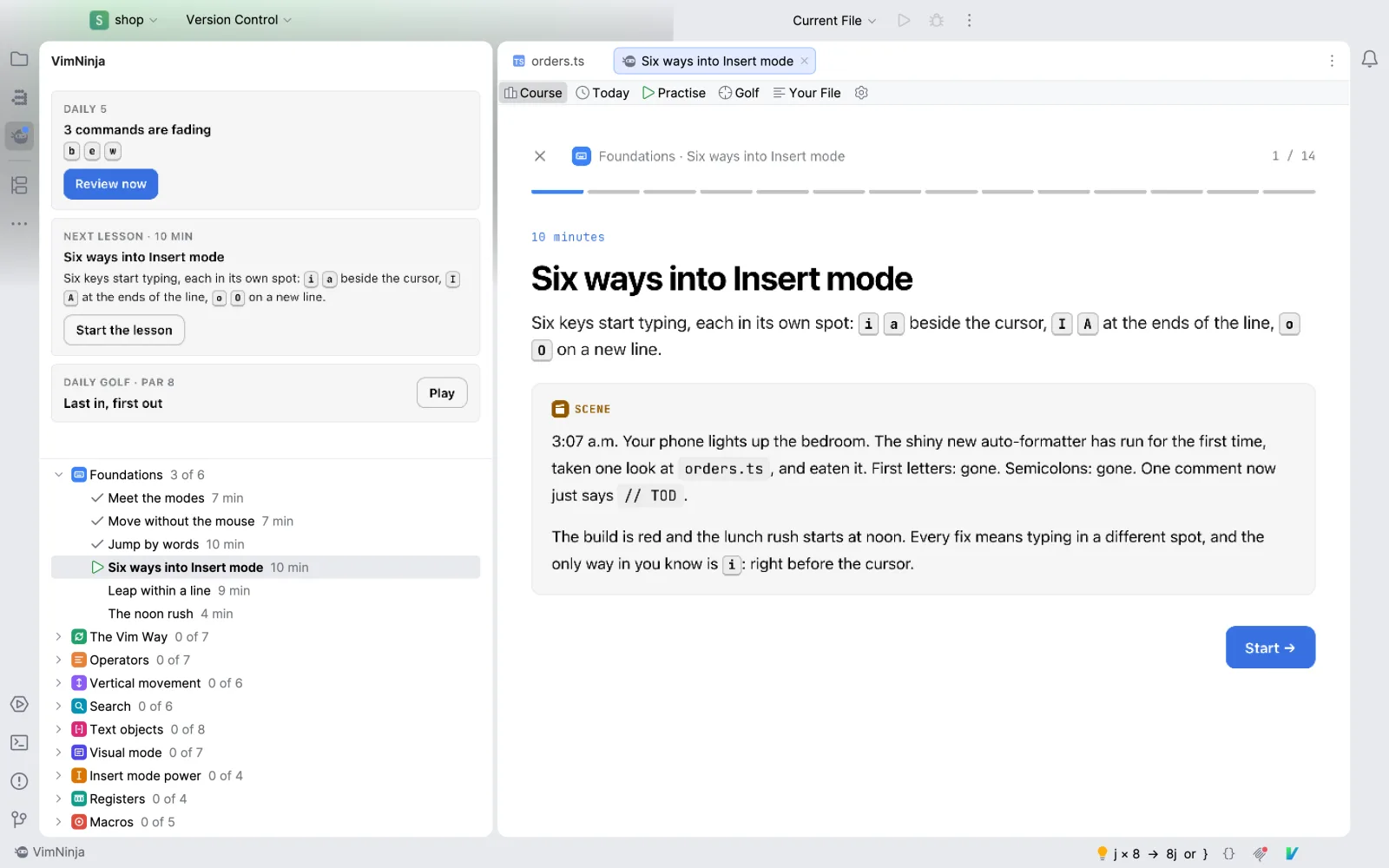
Your IDE’s colours, light or dark, and it follows when you switch.
In Tools › VimNinja, and in Find Action, ready for a shortcut of your own. Type to look.
One plugin for the JetBrains IDEs, with IdeaVim or without it.
Connect the plugin to your vimninja.com account and they become one: your results and reviews sync both ways, and Pro opens in your IDE too. It’s optional, and until you connect, nothing leaves your IDE.
Connected, it sends your practice to your account (your results, your reviews, the exercises you finish) and nothing else from your IDE: never a file, never a file’s name. The privacy policy
Something else? Ask us. We read everything.
Soon: it’s built and checked, and goes to the JetBrains Marketplace next. Start the course on vimninja.com now; connect the plugin when it’s out and everything you’ve done comes with you.
Yes. The plugin is free, with the free lessons, the daily review, practice drills and golf. Pro, on vimninja.com, opens every lesson’s exercises and every drill, there and in your IDE once your account is connected.
Not to learn: the lessons run in VimNinja’s own Vim, inside the tab. To use what you learn in your files, yes. Settings › Vim in your IDE says whether it’s there and on, and opens your .ideavimrc.
No. Your file is practised as a copy; the file itself is never touched. VimNinja never installs or changes IdeaVim or your .ideavimrc: it opens them for you.
The coach is off until you turn it on. On, a tip comes at most every ten minutes, each at most once a day, in the status bar and never as a pop-up, and “got it” means never again. Reminders are off until you pick a time.
Yes. VimNinja’s tab and tool window take your theme’s colours, light or dark, and follow when you switch. The code editor in a lesson keeps the course’s own colours, as a code block does.
No. The coach keeps only how often each habit was seen, on your computer. Until you connect an account, the plugin makes no network request; connected, it sends your practice to your account, never a file or a file’s name.
There’s VimNinja for VS Code and VimNinja for Neovim: one course, and connected, the same progress in each.
The plugin: free, for JetBrains IDEs from 2025.3.1, on the JetBrains Marketplace soon.