How to open and switch between files in Vim
Type :e prices.js and press ↵ to open another file. Ctrl-^ jumps back to the one before. :ls lists the files you have open and :b2 switches to number 2. In Vim, save with :w first or it stops you with E37.
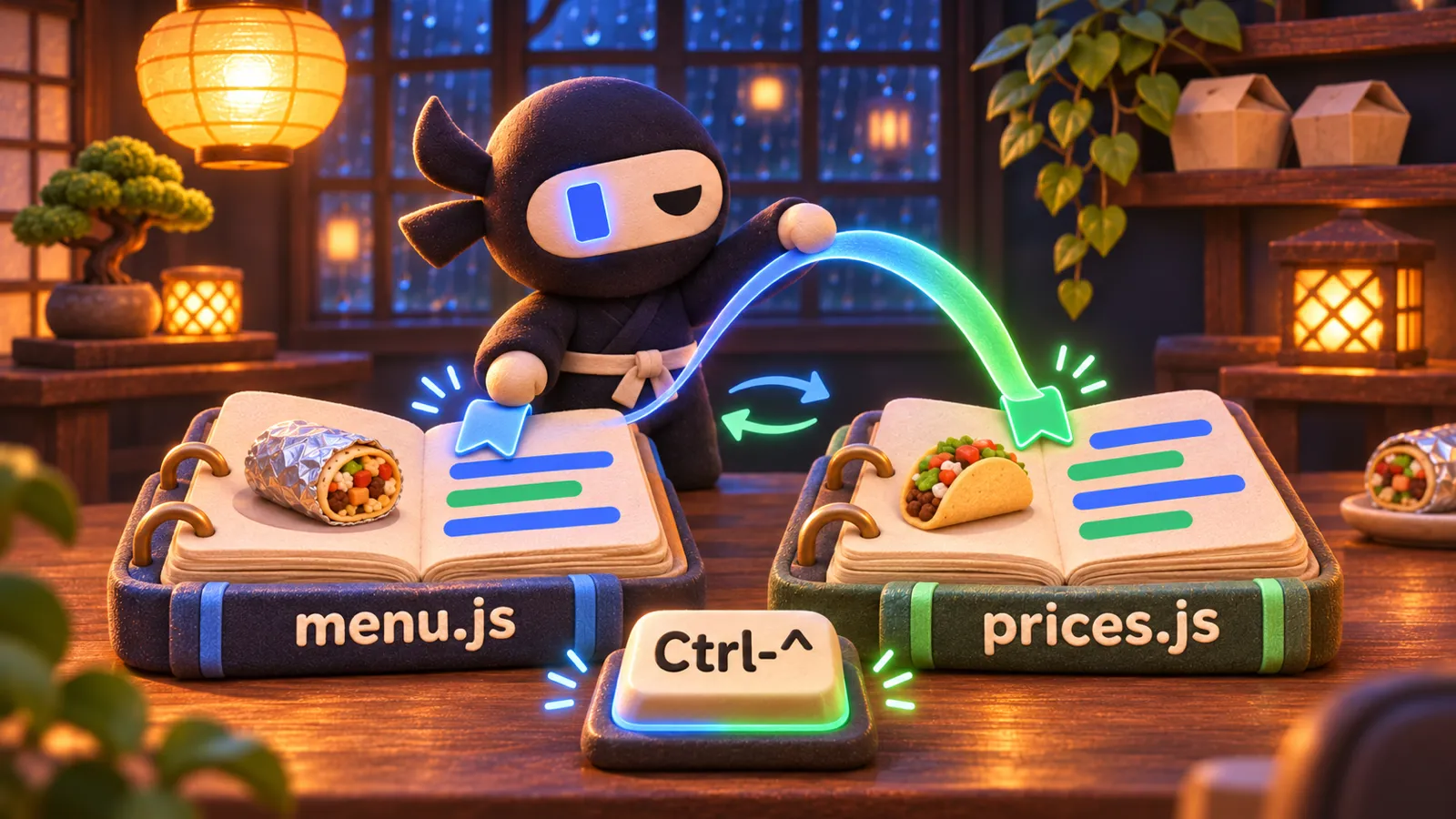
Byte Burrito is adding a pumpkin burrito. You've opened menu.js, typed it into the list, and now it needs a price, which lives in prices.js. You don't have to quit Vim to get there. Save the menu with :w, then type :e prices.js and press ↵. :e is short for *edit*, and the prices open where the menu was.
You rarely type a whole name. Type :e pr and press Tab, and Vim finishes it. If more than one file matches, each Tab moves on to the next. A name that doesn't exist yet opens an empty file, and your first :w creates it.
With the price in and saved, Ctrl-^ (hold Ctrl and press 6) takes you back to menu.js, and pressing it again brings back prices.js. Vim calls the file you were in before the *alternate file*. :e# is the same jump typed as a command.
Bounce between the two files
Press the keys as you would in Vim. Nothing here opens a real file.
Why Vim says E37 when you switch
Skip the :w in Vim and it won't leave the menu. :e prices.js answers E37: No write since last change (add ! to override). Vim closes the file you leave, and closing this one would lose the pumpkin burrito. Save with :w and switch again. Or type :e! prices.js, which in Vim switches anyway and throws the changes away.
The other way is to let files stay open in the background, changes and all. :set hidden does that, and a line set hidden in your vimrc keeps it on. Neovim turns it on for you, so there :e prices.js just goes, and the menu waits with its changes unsaved. :wa saves every file that has changes.
See every open file with :ls
Every file you open stays on a list until you quit, and Vim calls each one a *buffer*. :ls shows the list, one file per line with its number first, and a few marks between the number and the name:
%is the file on screen#is the alternate file, where Ctrl-^ goes+means it has unsaved changeshmeans it's open in the background (hidden)
:b2 switches to buffer 2. :b takes part of a name too, so :b pri opens prices.js. If the letters fit more than one file, Vim says E93: More than one match and you type a little more. :bn and :bp step to the next and previous buffer on the list. When you're done with a file, :bd closes it and takes it off the list.
Find your way round the list
Open several files at once
From the shell, vim menu.js prices.js shop.js opens all three. You see menu.js first, and the other two wait their turn on Vim's *argument list*. :n (*next*) moves on to the next file and :prev goes back. :args shows the list, with the file you're in between square brackets. All three are buffers as well, so :ls shows them and :b reaches any of them.
If you quit before you've been through them all, Vim stops you with E173: 2 more files to edit. Type :q again straight away and it quits.
Work through the files
Open a file in a new tab
:tabnew prices.js opens the prices in a new tab, and a row of tab labels appears along the top. gt goes to the next tab and gT to the one before, and with a count, 2gt goes to the second tab. :tabclose closes the tab you're on. vim -p menu.js prices.js starts with each file in a tab of its own.
A Vim tab works differently from a tab in VS Code or a browser. It holds a layout of windows, menu.js and prices.js side by side for instance, and every tab shares the same buffer list. :e shop.js inside a tab swaps the file that tab shows, and closing a tab closes no files, since their buffers stay on :ls. So move between files with buffers, and keep tabs for separate layouts, one for the shop's code and one for its tests.
Move between tabs
Pick a file when you don't know its name
:Ex (*Explore*) lists the folder the current file is in. It's netrw, the file browser that comes with Vim and Neovim. Move through the list with j and k, press ↵ on a name to open that file or folder, and - to go up a folder.
| Type | What it does |
|---|---|
:e prices.js ↵ | Open a file where this one was. Tab completes the name. |
Ctrl-^ or :e# ↵ | Back to the file you were in before (the alternate file). |
:e! ↵ | Throw away unsaved changes and load this file again from disk. |
:ls ↵ | List the open files (buffers). :buffers and :files are the same. |
:b2 / :b pri ↵ | Switch to buffer 2, or to the one whose name contains pri. |
:bn / :bp ↵ | The next or previous buffer on the list. |
:bd ↵ | Close this buffer. Refuses with E89 if it has unsaved changes. |
:wa ↵ | Save every file that has changes. |
:set hidden ↵ | Let files stay open in the background with unsaved changes. On already in Neovim. |
vim a.js b.js / vim -p a.js b.js | Open several files from the shell / each in its own tab. |
:n / :prev / :args ↵ | The next or previous file on the argument list, or show the list. |
:tabnew prices.js ↵ | Open a file in a new tab. On its own, :tabnew opens an empty one. |
| gt / gT / 2gt | The next tab, the one before, the second tab. |
:tabclose ↵ | Close this tab. Its files stay open. |
:Ex ↵ | Browse the current file's folder and open a file from it. |